
There are a few ways to take a screenshot on Windows 11, these ways ordered from least complicated to most include:
- Pressing the "Print Screen" and choosing either Rectangle, Window, Fullscreen, or Freeform.
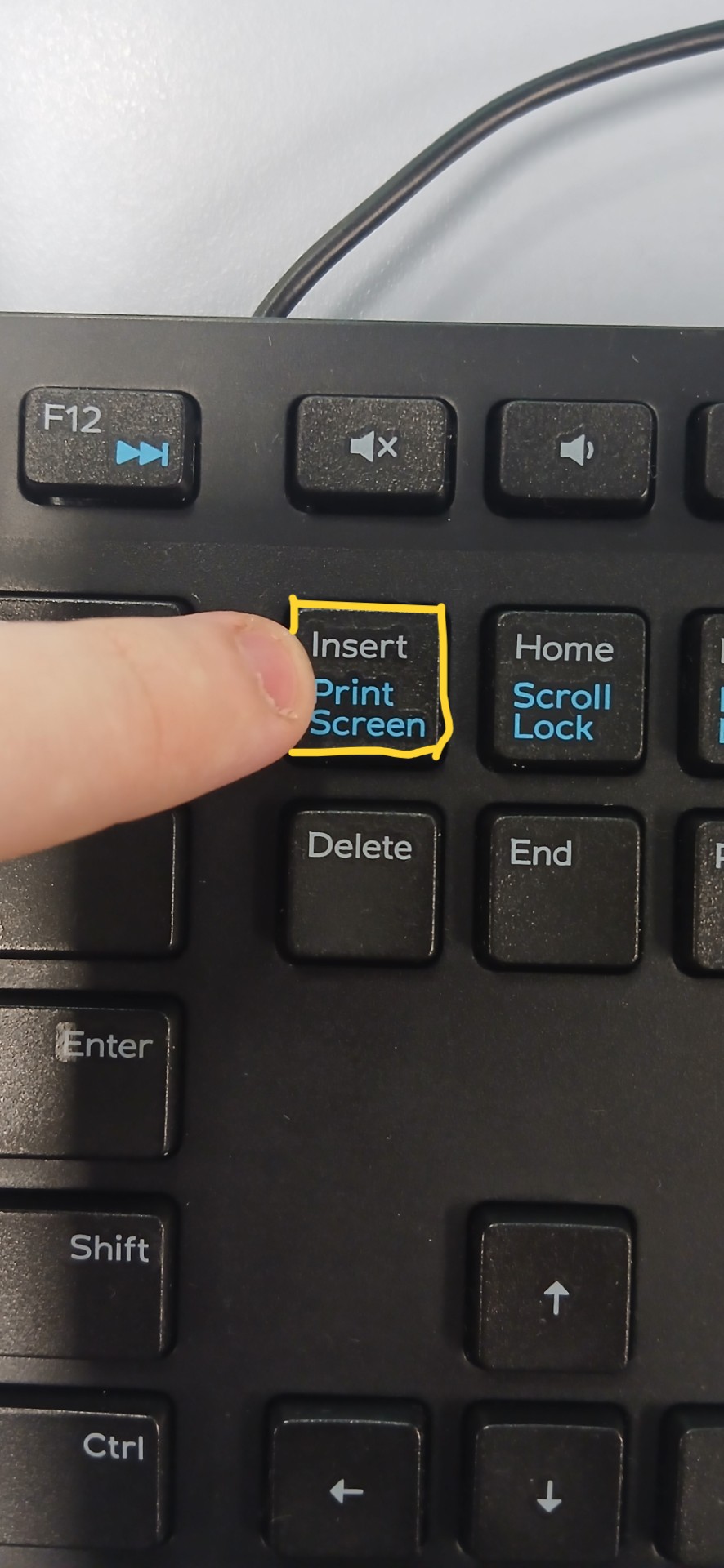
- pressing "Windows Key + Print Screen" Automatically Taking a Screenshot of your entire screen.
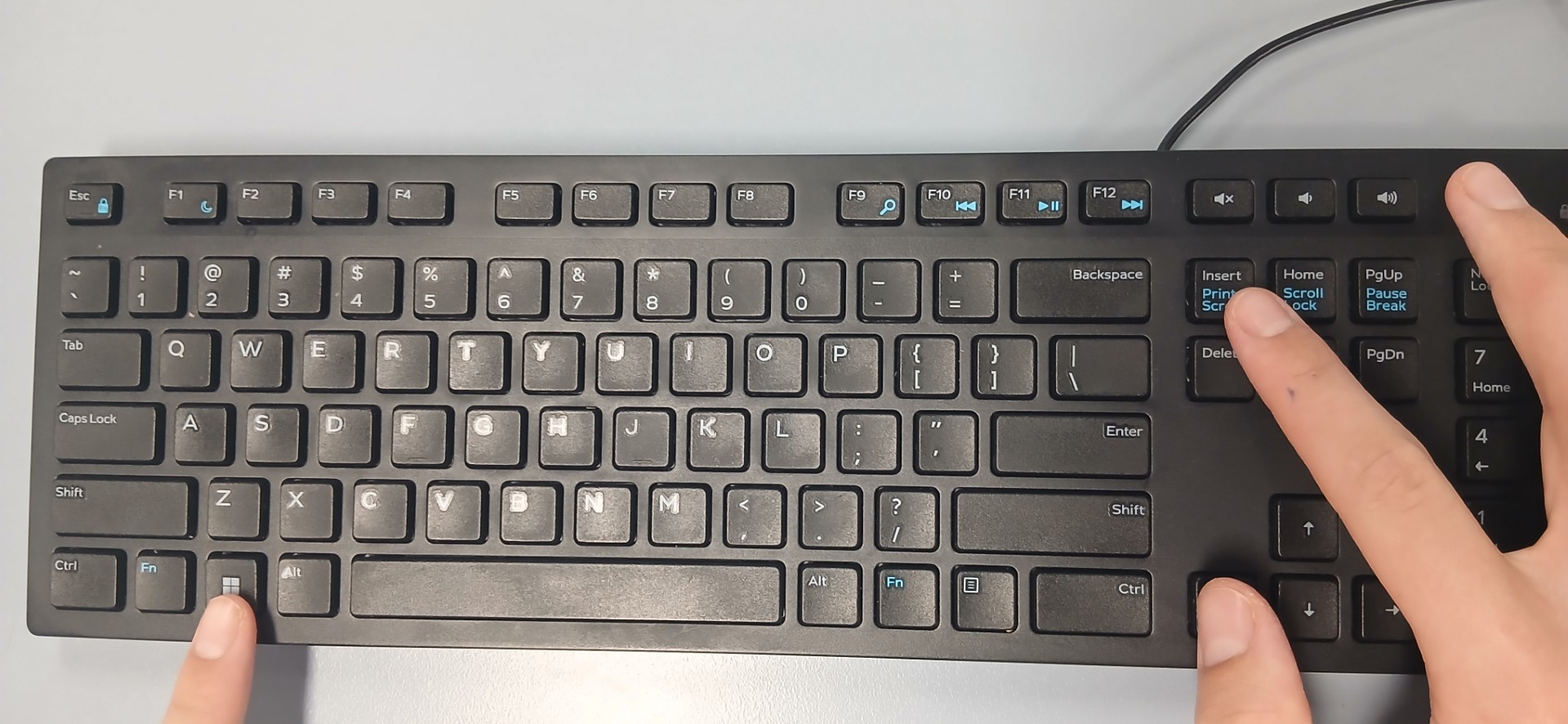
- Pressing "Alt + Print Screen" to take a screenshot of only your active window
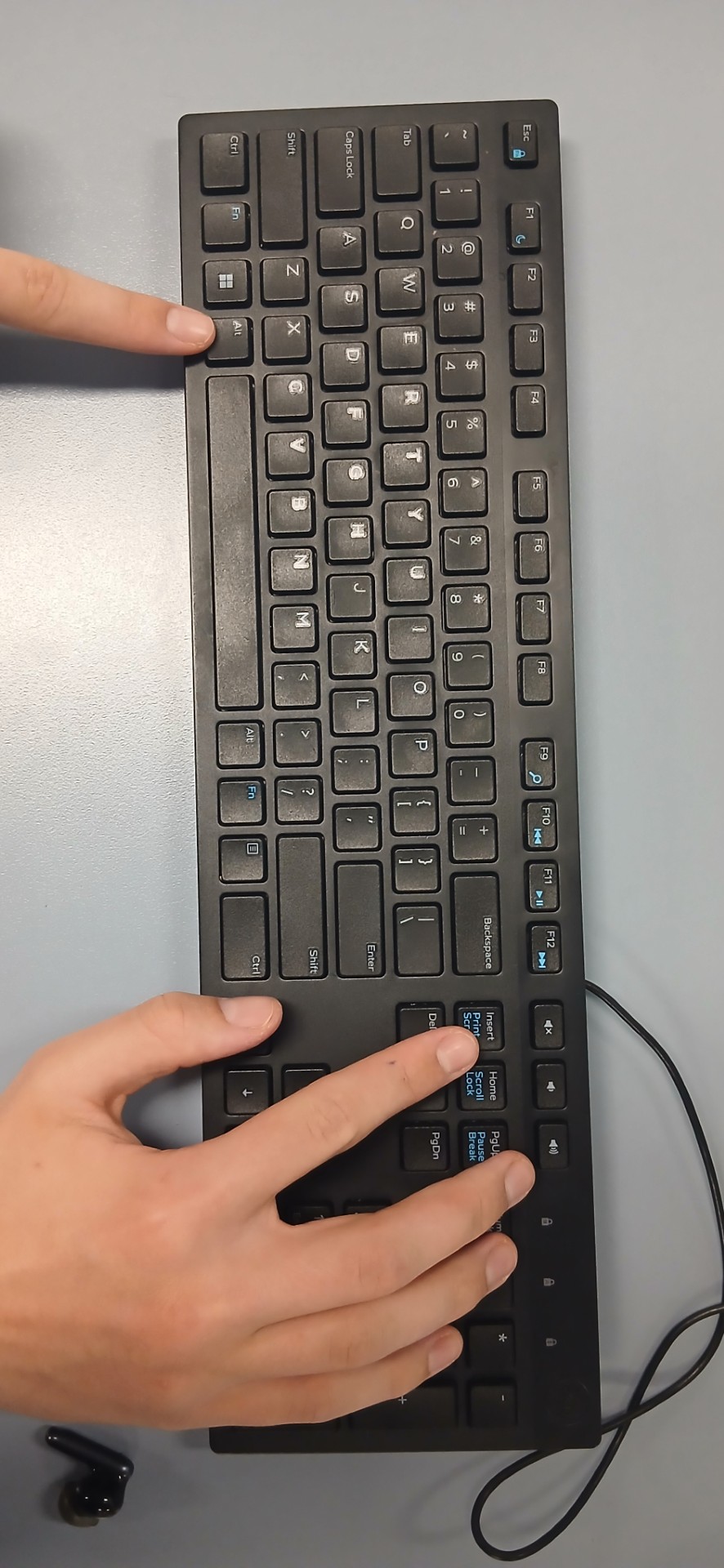
- Pressing "Windows Key + Shift + S" and choosing either Rectangle, Window, Fullscreen, or Freeform.
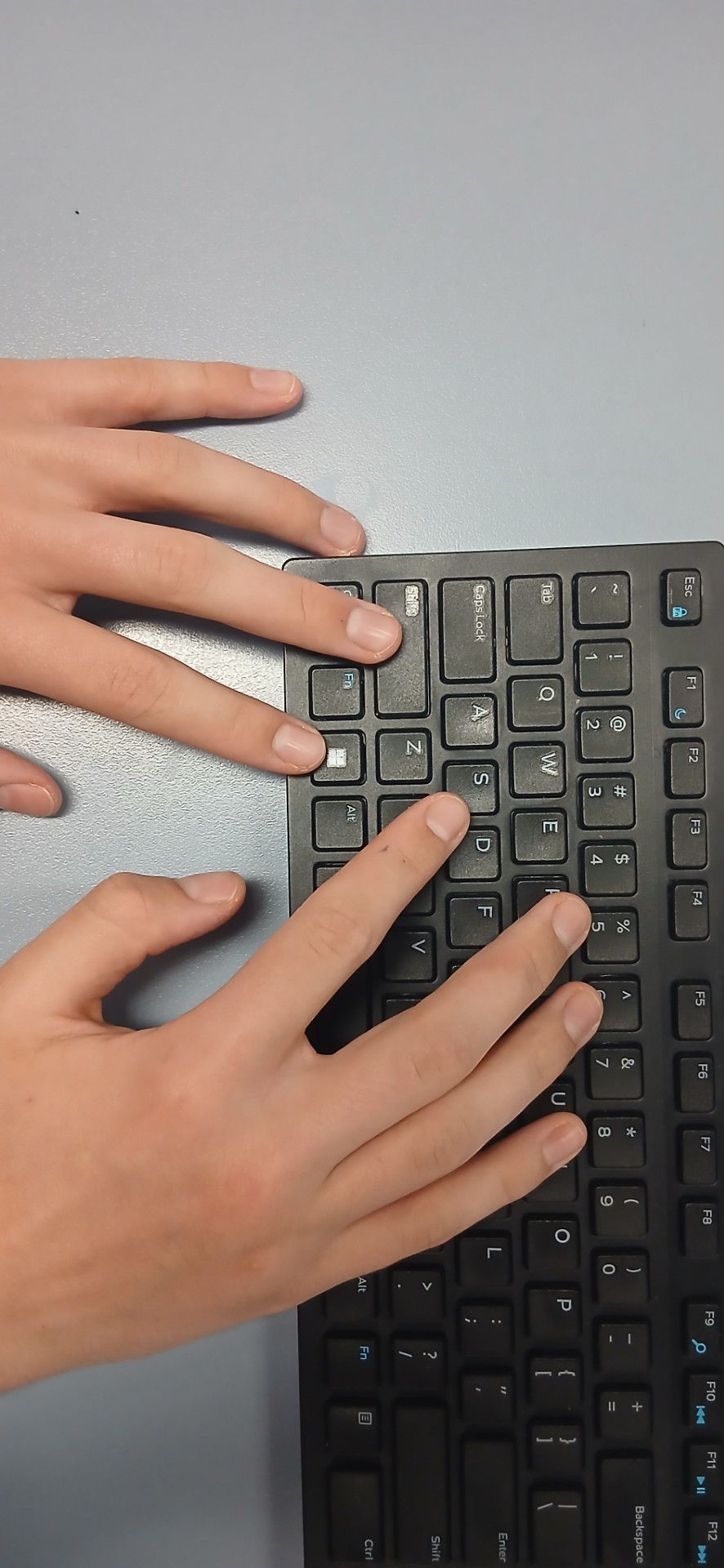
Alternatively,
- you can open the Xbox Game bar using "Windows Key + G" and press the take screenshot button inside the Capture tab.
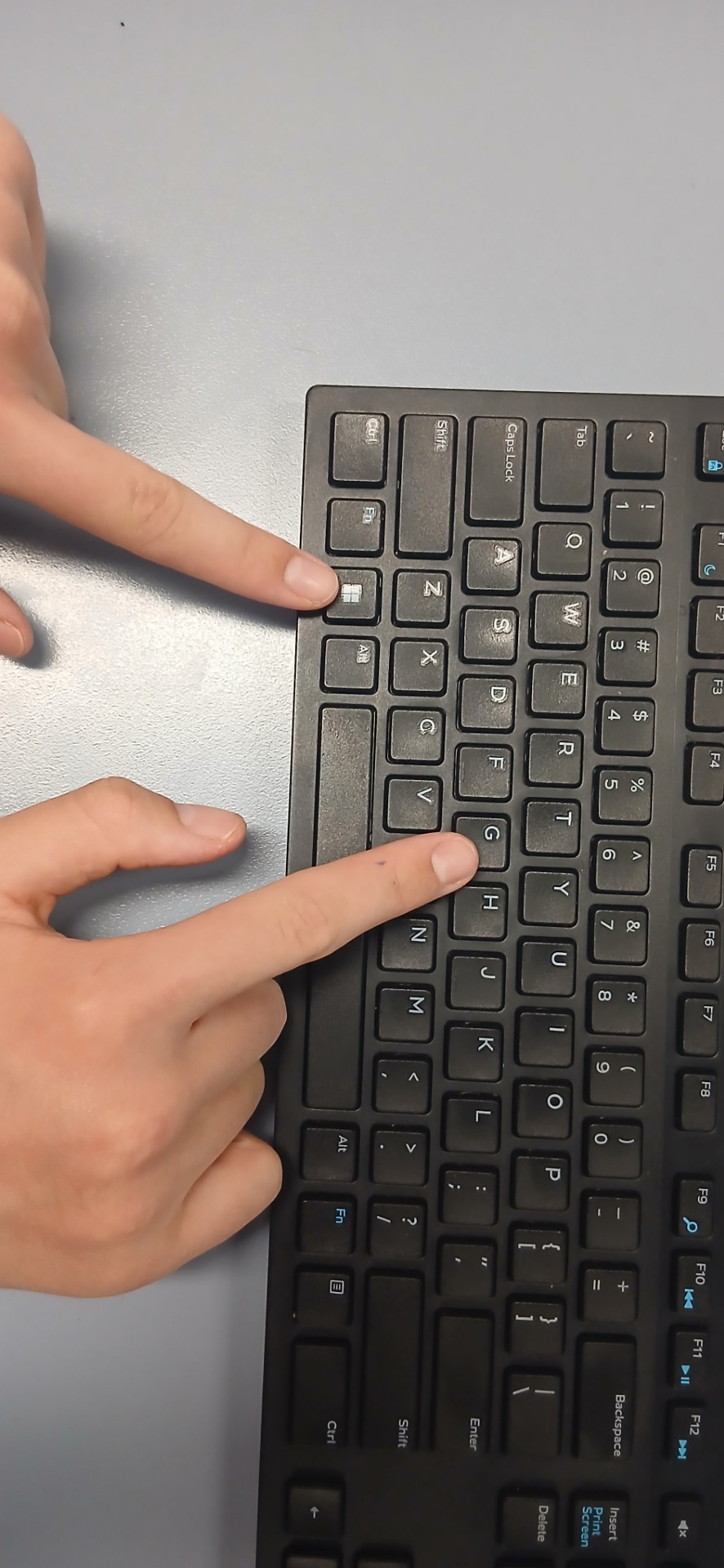
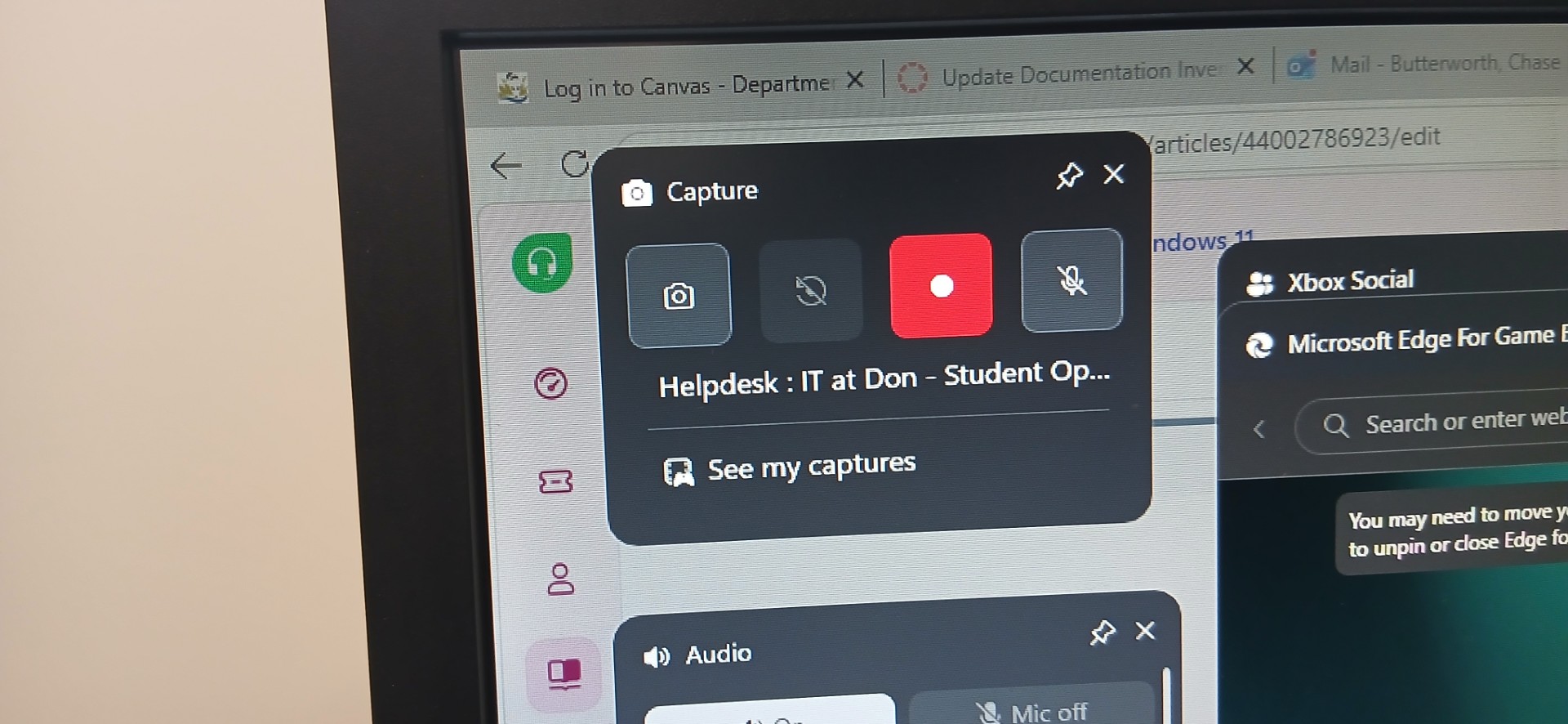
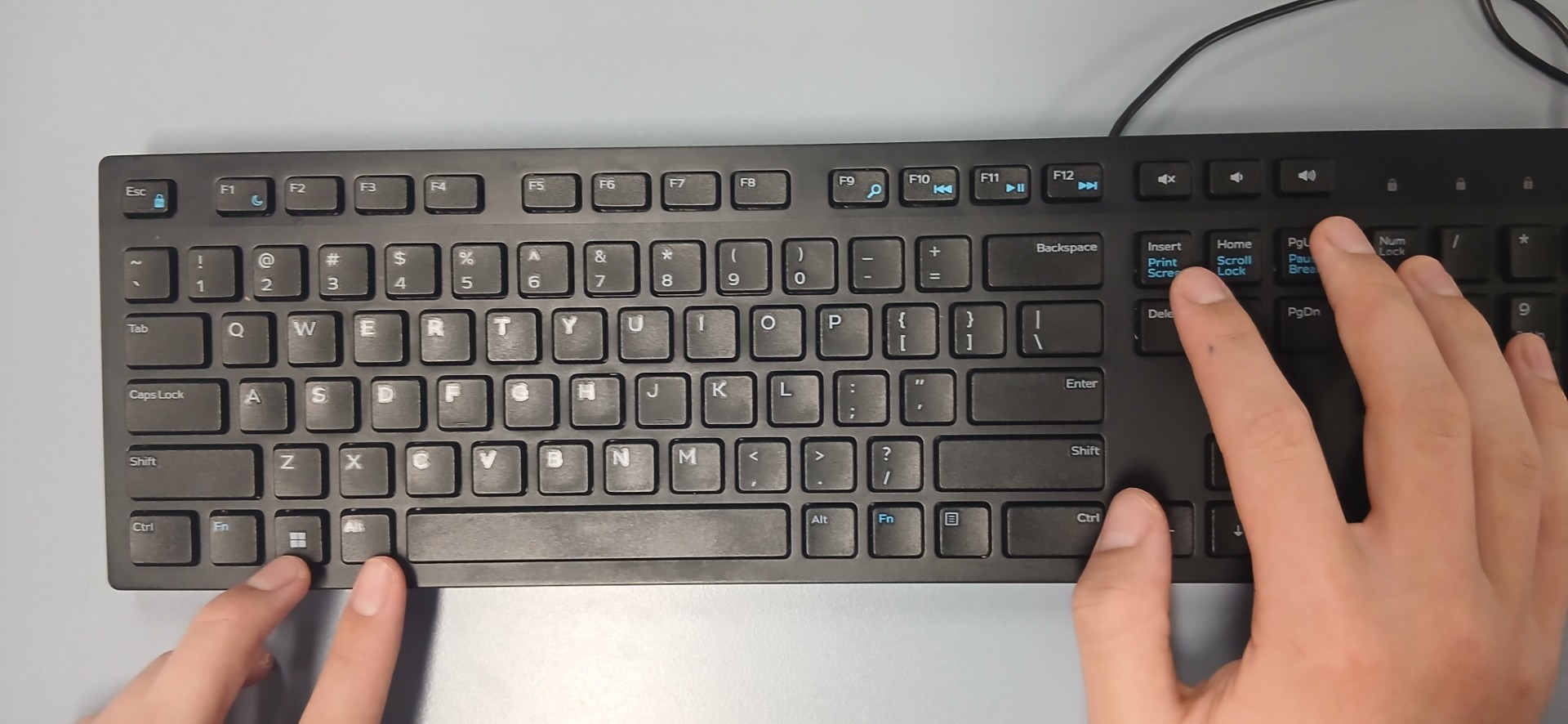
- You can also use "Windows Key + Alt + Print Screen" to take a full screen screenshot using Xbox Game bar.
What is the difference between Rectangle, Window, Fullscreen, and freeform screenshots.
- Rectangle: You can Drag and take a screenshot of a select area of your choosing.
- Window: Takes a Screenshot of only the select Application that you choose to take a picture of but only copies it to keyboard, which means you need to paste it into word or another software and save as. .
- Fullscreen: Takes a Screenshot of your entire screen regardless of what's on the screen but only copies it to keyboard, which means you need to paste it into word or another software and save as.
- Freeform: takes a screenshot of a hand drawn area on your screen.